User Guide
Welcome to DoctorBase, a desktop app for managing patient records and appointments quickly and accurately.
DoctorBase is designed for solo medical practitioners based in Singapore who prefer typing fast commands instead of clicking through menus. With simple commands, you can add patients, schedule appointments, search records, and view your upcoming schedule — all in one place.
Table of Contents
Quick start
- Check your Java version.
- Download DoctorBase
- Download the latest
.jarfile (release) from here.
- Download the latest
- Choose a Home Folder to store your data
- Move the
.jarfile to the folder where you’d like DoctorBase to save your data.
- Move the
- Open the terminal and navigate to that folder
- Open Terminal (Mac/Linux) or Command Prompt (Windows)
- Navigate to your folder (e.g, Documents/doctorBase) using
cd, like this:- macOS/Linux:
cd ~/Documents/doctorbase - Windows (Command Prompt/Powershell):
cd %USERPROFILE%\Documents\doctorbase
- macOS/Linux:
- Run the app!
- Once you’re in the right folder, type this command and press Enter:
java -jar DoctorBase.jarA window like the one shown below should appear within a few seconds. Note how the app contains some sample data.

- Once you’re in the right folder, type this command and press Enter:
- Try your first command!
- Type a command in the command box and press
Enter, for example:-
help: Displays the help window. -
list: Lists details of all patients. -
add n/John Doe i/S8052802G g/m p/98765432 e/johnd@example.com d/12-12-2002 a/John street, block 123, #01-01: Adds a patient namedJohn Doeto the patient list. -
list-appt-upcoming: Lists upcoming appointments for all patients.
-
- Type a command in the command box and press
- Explore more commands!
- Refer to the Features below for details of each command.
Features
 Notes about the command format:
-
Words in
UPPER_CASEare user-supplied parameters.
e.g. inadd n/NAME,NAMEis a parameter which can be used asadd n/John Doe. -
Items in
[square brackets]are optional.
e.gn/NAME [mh/MEDICAL_HISTORY]can be used asn/John Doe mh/canceror asn/John Doe. -
Items ending with
…can be used multiple times including zero times.
e.g.[mh/MEDICAL_HISTORY]…can be used asmh/cancer,mh/cancer mh/covidetc. -
INDEXrefers to the number shown beside a patient or appointment in the displayed list.-
INDEXmust be a positive integer (1, 2, 3, …) - After using commands like
find, the displayed list changes so theINDEXchanges too. - Commands that use
INDEXdepend on the list currently displayed:- e.g.
delete 2deletes the 2nd patient only when the patient list is displayed. - e.g.
delete-appt 2deletes the 2nd appointment only when the appointment list is displayed.
- e.g.
-
-
Parameters can appear in any order.
e.g. if the command specifiesn/NAME p/PHONE_NUMBER,p/PHONE_NUMBER n/NAMEis also acceptable. -
Extraneous parameters for commands that do not take in parameters (such as
help,list,list-appt-upcoming,exitandclear) will be ignored.
e.g. if the command specifieshelp 123, it will be interpreted ashelp. - If you are using a PDF version of this document, be careful when copying and pasting commands that span multiple lines as space characters surrounding line-breaks may be omitted when copied over to the application.
General Commands
Viewing help : help
Opens a window that shows a summary of all available commands and a link to this User Guide.

Format: help
 Tip: You can also press F1 on your keyboard to open the help window.
Exiting the program : exit
Exits the program.
Format: exit
Clearing all entries : clear
Removes all patients and appointments at once.
Useful if you want to restart with a clean database.
Format: clear
 Caution: This action cannot be undone!
Patient Commands
Adding a patient : add
Adds a new patient to your patient list.
Useful when you take in a new patient under your care.
Format: add n/NAME i/NRIC g/GENDER p/PHONE_NUMBER e/EMAIL d/DATE_OF_BIRTH a/ADDRESS [mh/MEDICAL_HISTORY]…
-
DATE_OF_BIRTHuses the formatdd-mm-yyyy, and cannot be a future date. -
PHONE_NUMBERshould be 3-15 numbers. e.g12345678. -
NAMEshould be 1-80 alphanumeric characters, and cannot include special characters such as/. -
GENDERshould be male (‘m’), female (‘f’), or other (‘o’) - Each
MEDICAL_HISTORYentry should be 1-50 alphanumeric characters, or hyphen (-).
Tip: You can add multiple medical histories by repeating the mh/ field as needed. You can also choose to add none.
Info: PHONE_NUMBER and EMAIL duplicates are allowed for patients using guardians’ or parents’ contact details.
Examples:
add n/John Doe i/S8052802G g/m p/98765432 e/johnd@example.com d/12-12-2002 a/John street, block 123, #01-01add n/Betsy Crowe i/T0231512Z g/f d/02-12-2001 mh/covid e/betsycrowe@example.com a/Newgate Prison p/1234567 mh/leg fracture mh/G6PD
 Note: Ensure that a unique
NRIC is provided. Otherwise, the patient will be considered a duplicate,
and an error message will be shown.
Listing all patients : list
Shows the full patient list currently in DoctorBase.
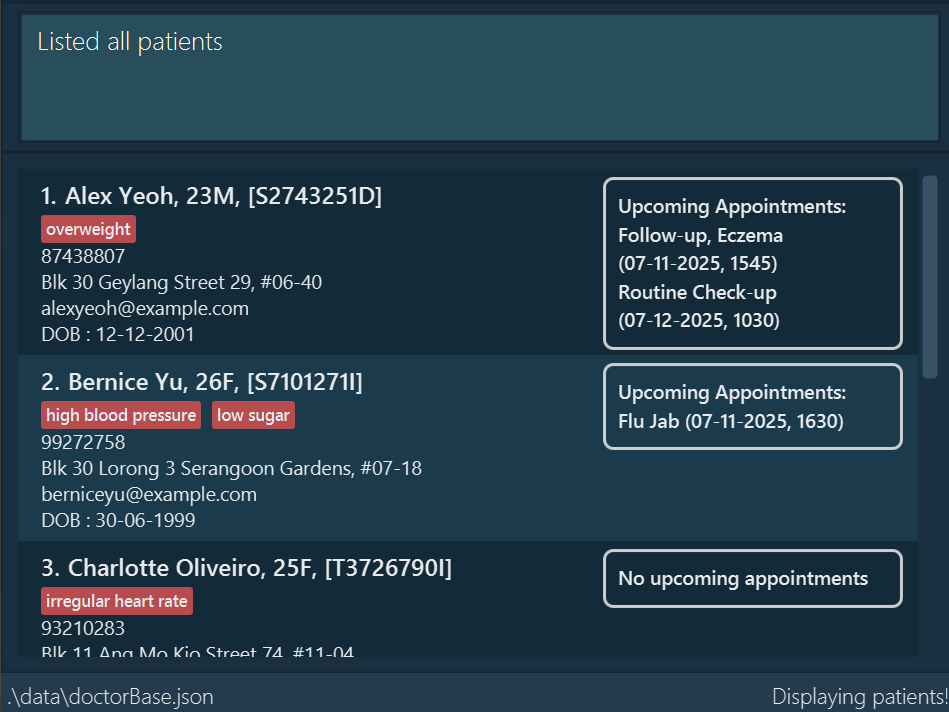
Format: list
Note: Only the first 3 upcoming appointments of each patient will be shown in the patient view.
Locating patients by name: find
Finds patients whose names match any of the given keywords.
Format: find KEYWORD [MORE_KEYWORDS]
- The search is case-insensitive. e.g
hanswill matchHans - The order of the keywords does not matter. e.g.
Hans Bowill matchBo Hans - Only the name is searched.
- Only full words will be matched e.g.
Hanwill not matchHans - Patients matching at least one keyword will be returned (i.e.
ORsearch). e.g.Hans Bowill returnHans Gruber,Bo Yang
Examples:
-
find JohnreturnsjohnandJohn Doe -
find alex davidreturnsAlex Yeoh,David Li

Editing a patient : edit
Updates the details of an existing patient in the currently displayed patient list.
Can only be used while viewing a list of patients. Run list to do so.
Format: edit INDEX [n/NAME] [i/NRIC] [g/GENDER] [p/PHONE] [e/EMAIL] d/[DATE_OF_BIRTH] [a/ADDRESS]
[mh/MEDICAL_HISTORY]…
- At least one optional field must be provided.
- Existing values will be updated to the input values.
- When editing medical histories, the existing medical histories of the patient will be removed, i.e adding of medical histories is not cumulative.
- You can remove all of a patient’s medical histories by typing
mh/without specifying any medical histories after it.
Examples:
-
edit 1 p/91234567 e/johndoe@example.comEdits the phone number and email address of the 1st patient in the currently displayed patient list to be91234567andjohndoe@example.comrespectively. -
edit 2 n/Betsy Crower mh/Edits the name of the 2nd patient in the currently displayed patient list to beBetsy Crowerand clears all of their existing medical histories.
Deleting a patient : delete
Removes a patient (and all of their appointments) from the currently displayed patient list.
Useful when a patient is no longer going to be under your care
Can only be used while viewing a list of patients. Run list to do so.
Format: delete INDEX
Examples:
-
listfollowed bydelete 2deletes the 2nd patient in the currently displayed patient list. -
find Betsyfollowed bydelete 1deletes the 1st patient in the resultant patient list of thefindcommand.
Caution: This action cannot be undone!
Appointment Commands
Adding an appointment : add-appt
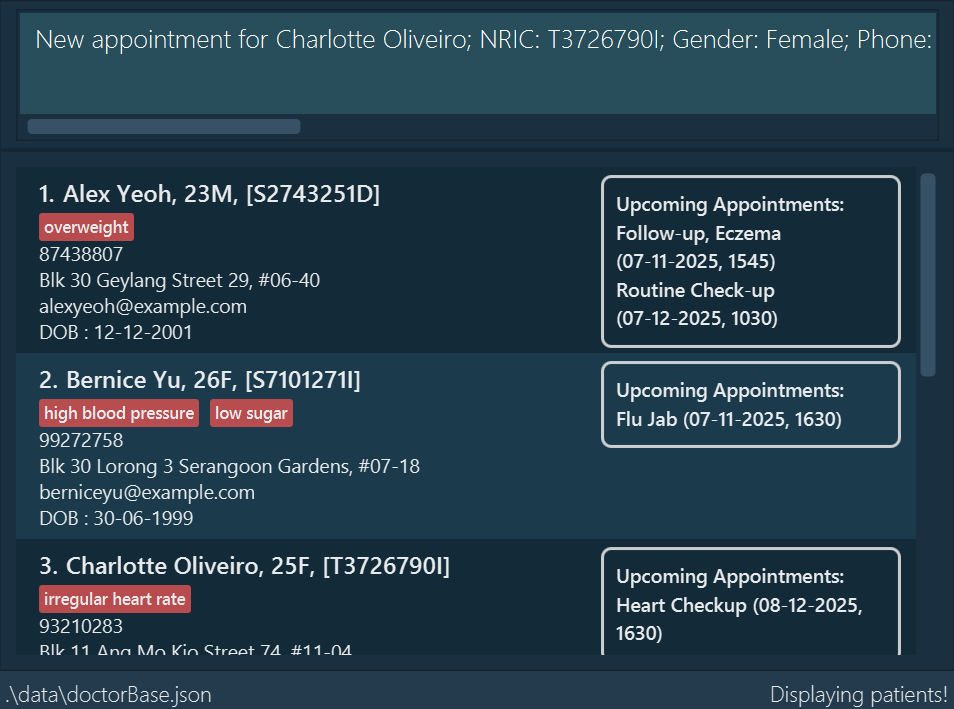
Adds a new appointment to a selected patient.
Can only be used while viewing a list of patients. Run list to do so.
Format: add-appt INDEX at/APPOINTMENT_TITLE ad/APPOINTMENT_DATE
-
INDEXrefers to the number before a patient’s name in the currently displayed patient list. -
APPOINTMENT_DATEuses the formatdd-mm-yyyy, HHmm
Examples:
add-appt 2 at/flu jab ad/27-02-2025, 0900add-appt 3 at/Heart Checkup ad/08-12-2025, 1630
Listing all upcoming appointments : list-appt-upcoming
Shows every future appointment across all patients, sorted by date.
Useful when you want to keep track of your upcoming schedule.
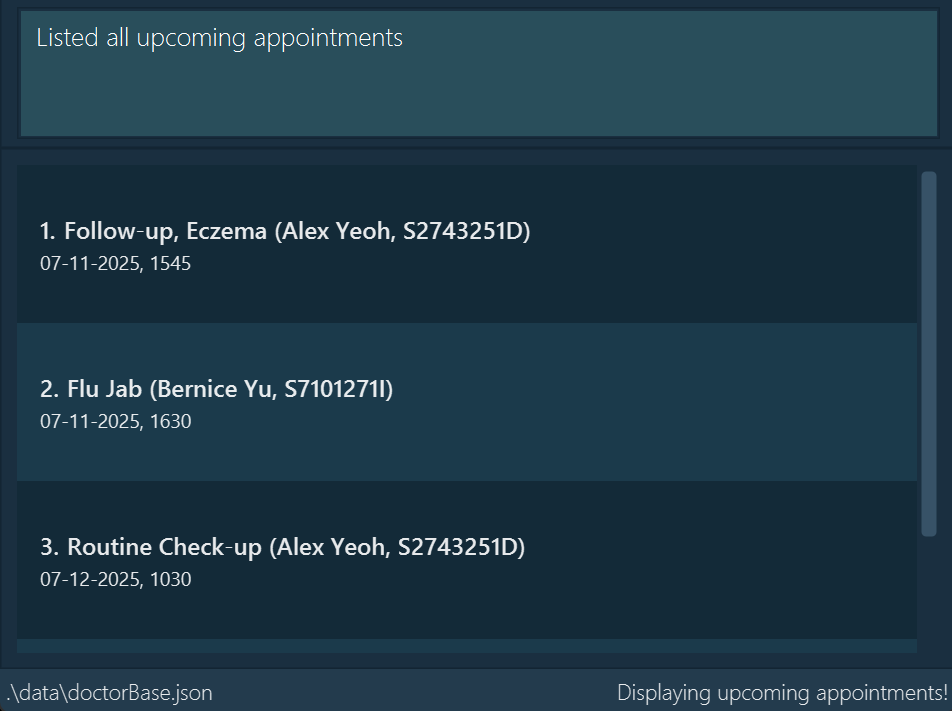
Format: list-appt-upcoming
Note: No commands other than add and list can be run while displaying this.
Listing all appointments of patient : list-appt
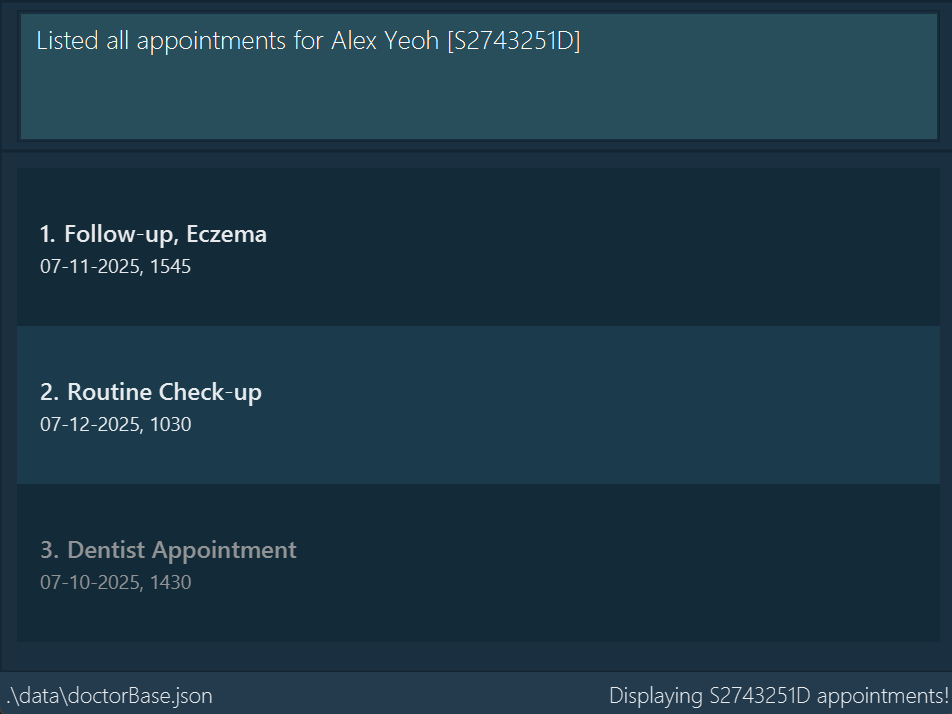
Shows all the appointments of a selected patient.
Past appointments will be greyed out.
Upcoming appointments will be shown first (earliest to latest), followed by past appointments in chronological order.
Useful when you want to check a patient’s appointment history or upcoming schedule.
Can only be used while viewing a list of patients. Run list to do so.
Format: list-appt INDEX
Examples:
-
list-appt 1: List all appointments of the first patient in the currently displayed patient list.
Editing an appointment : edit-appt
Updates the details of an existing appointment in the currently displayed appointment list of a patient.
Can only be used while viewing the appointments of a patient. Run list-appt INDEX to do so.
Format: edit-appt INDEX [at/APPOINTMENT_TITLE] [ad/APPOINTMENT_DATE]
- At least one optional field must be provided.
- Existing values will be updated to the input values
Examples:
-
edit-appt 1 at/dental ad/02-02-2002, 0900edits the 1st appointment in the currently displayed appointment list. -
edit-appt 2 ad/20-12-2025, 1200edits the 2nd appointment in the currently displayed appointment list.
Note: This command only works in appointments view (i.e. list-appt INDEX has to be ran first)
Deleting an appointment : delete-appt
Deletes an appointment from the currently displayed appointment list of a patient.
Can only be used while viewing the appointments of a patient. Run list-appt INDEX to do so.
Format: delete-appt INDEX
Examples:
-
delete-appt 1deletes the 1st appointment in the currently displayed appointment list. -
delete-appt 3deletes the 3rd appointment in the currently displayed appointment list.
Caution: This action cannot be undone!
Extra features
Saving the data
DoctorBase data is saved automatically after any command that modifies it. There is no need to save manually.
Editing the data file
DoctorBase data is saved as a JSON file at [JAR file location]/data/doctorBase.json. Advanced users are welcome to update data directly by editing it.
Caution:
If your changes to the JSON file makes its format invalid, DoctorBase will discard all data and start with an empty JSON file at the next run. Hence, it is recommended to make a backup of the file before making any edits.Furthermore, certain edits can cause DoctorBase to behave in unexpected ways (e.g a value entered is outside its acceptable range). Therefore, edit the JSON file only if you are confident that you can update it correctly.
FAQ
Q: How do I transfer my data to another computer?
A: Install DoctorBase in the other computer and overwrite the empty JSON file it creates with the JSON file in your current device’s DoctorBase.
Q: What happens if I accidentally type in the wrong parameters?
A: Do not worry, DoctorBase will notify you of any invalid parameters without updating the patient/appointment list. Any erroneous parameters can also be amended with the edit/edit-appt command.
Q: Can I undo an accidental deletion?
A: DoctorBase does not currently support an undo feature. Once a patient or appointment is deleted, it is permanently removed. We recommend making sure that the correct patient or appointment is selected before running delete or delete-appt.
Q: Can I use DoctorBase without an internet connection?
A: Yes. DoctorBase works fully offline. Your data is stored locally on your computer and does not require internet access.
Q: Where is my data stored?
A: DoctorBase stores your data in a file named doctorBase.json, within the data folder located where the .jar file is run.
Q: Can I change where DoctorBase stores its data?
A: Yes. Simply move your .jar file to a different folder and re-run it. DoctorBase will then create and store data in a new data/ folder at the new .jar location.
Q: Can I run DoctorBase on multiple computers?
A: Yes. Just copy your doctorBase.json file to another machine running DoctorBase. As long as both computers have Java 17 or higher, your data will load normally.
Q: Can two patients share the same name?
A: Yes, but their NRICs must be unique as DoctorBase uses their NRIC to differentiate between patients.
Troubleshooting
Q: The application does not start.
A: Please ensure that the current version of Java is 17, following the requirements specified in Step 1 of QuickStart.
If that does not resolve the issue, please redownload the latest .jar file (release) from here and try again.
Known issues
-
When using multiple screens, if you move the application to a secondary screen, and later switch to using only the primary screen, the Graphical User Interface (GUI) will open off-screen. The remedy is to delete the
preferences.jsonfile created by DoctorBase before running it again. -
When entering parameters, you are unable to use special characters. However, you are allowed to use hyphen,
-, in your MedicalHistory.
e.g. if the parameter isn/Hiller s/o Tim, theNAMEinput will be rejected. To remedy this, please omit the/instead. -
Patients who are foreigners are not supported by DoctorBase as they do not have an
NRIC. Unfortunately, this currently cannot be remedied.
Command summary
| Action | Format, Examples |
|---|---|
| Add Patient |
add n/NAME i/NRIC g/GENDER p/PHONE_NUMBER e/EMAIL d/DATE_OF_BIRTH a/ADDRESS [mh/MEDICAL_HISTORY]… e.g., add n/John Doe i/S8052802G g/m p/98765432 e/johnd@example.com d/12-12-2002 a/John street, block 123, #01-01
|
| Add Appointment |
add-appt INDEX at/APPOINTMENT TITLE ad/APPOINTMENT DATE e.g., add-appt 1 at/flu jab ad/27-02-2025, 0900
|
| Clear List | clear |
| Delete Patient |
delete INDEX e.g., delete 3
|
| Delete Appointment |
delete-appt INDEX e.g., delete-appt 1
|
| Edit Patient |
edit INDEX [n/NAME] [i/NRIC] [g/GENDER] [p/PHONE_NUMBER] [e/EMAIL] [d/DATE_OF_BIRTH] [a/ADDRESS] [mh/MEDICALHISTORY]… e.g.,edit 2 n/James Lee e/jameslee@example.com
|
| Edit Appointment |
edit-appt INDEX [at/APPOINTMENT TITLE] [ad/APPOINTMENT DATE] e.g., edit-appt 1 at/dental ad/02-02-2002, 0900
|
| Find Patient |
find KEYWORD [MORE_KEYWORDS] e.g., find James Jake
|
| List Patients | list |
| List Upcoming Appointments | list-appt-upcoming |
| List Appointments of a Patient |
list-appt INDEX e.g., list-appt 1
|
| Help | help |